The FirstPoint Ticker
Your battery, at a glance.
A little always-on display that watches your solar system all day — battery, solar, house and grid — so nobody has to dig out a phone to know how things are doing. Off grid or on. Works with EG4, Victron, Sol-Ark and Sigenergy.
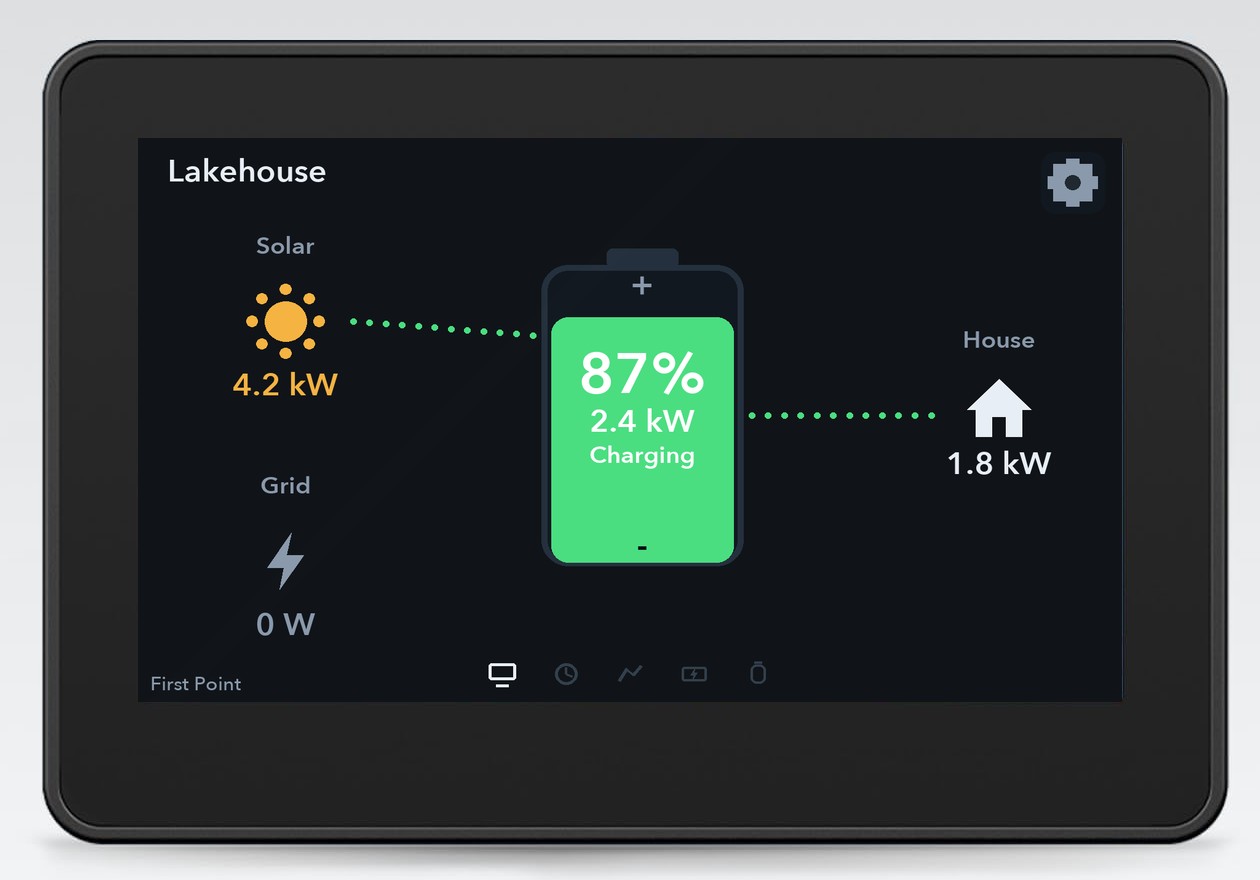
Three displays. One Ticker.
Every model runs the same software with a dashboard shaped to its screen — pick the size that fits your wall, counter or panel. Order the display on Amazon, then load the free First Point software in your web browser in about a minute.
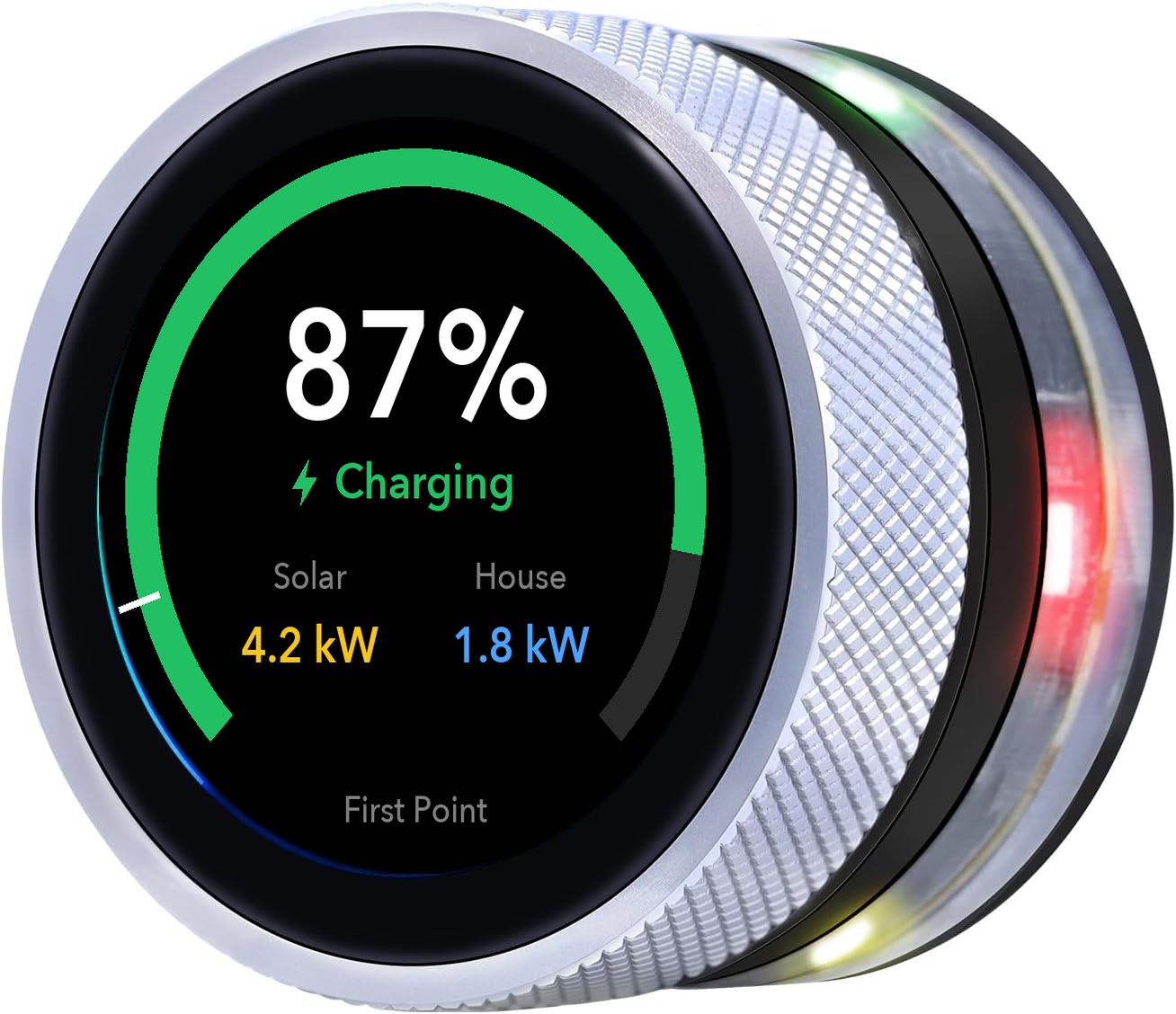
Ticker Knob
A charming little dial. Turn the knob to flip between pages, press it to open the menu. Perfect beside the kitchen light switch.
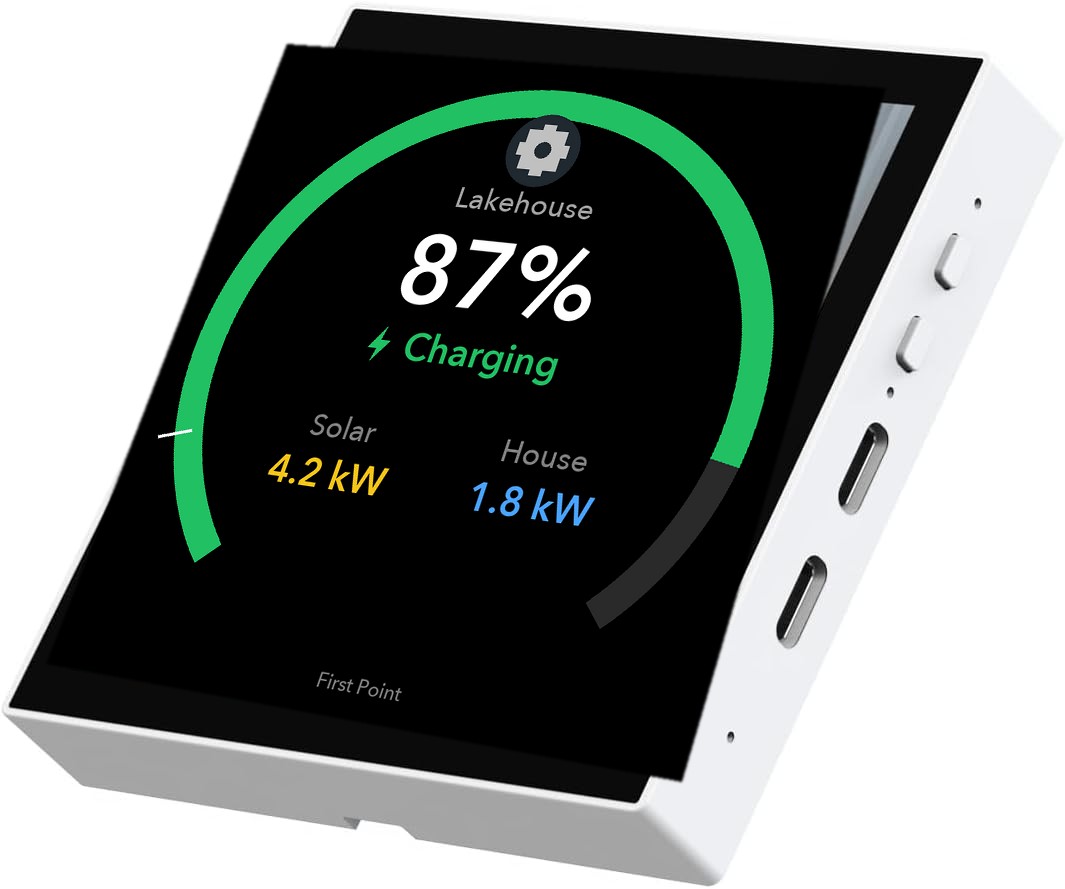
Ticker Wall Panel
Fits a standard 86-style wall box for a clean, built-in look — or sits anywhere with USB power. Bright 480×480 touch screen.
Ticker Desk Display
The full dashboard with room to breathe: power flowing from solar and grid into the battery and out to the house, all on one screen.
Works with your system.
Four inverter brands. Sign in with the monitoring account you already have — or skip the cloud entirely and let the Ticker read the inverter itself. One Ticker can watch up to eight systems at once, in any mix of brands.
EG4
The EG4 Monitor account you already use — or no internet at all: the Ticker can read the inverter's own Wi-Fi dongle over your home network, or plug straight into its RS-485 port. Parallel stacks are added up as one system.
Victron
Any GX device reporting to VRM — Cerbo, Ekrano, Venus OS. Sign in with your VRM account, or paste a read-only access token you can revoke any time. Live values land on the screen every couple of seconds.
Sol-Ark
Your MySolArk sign-in — the same one the Sol-Ark app uses. Battery, solar, house, grid and generator, all on the dashboard. 24-hour history is still to come.
Sigenergy
Your mySigen sign-in, through Sigenergy's official API — so the EV charger and heat pump count toward the house figure, the way the Sigen app shows them. Sigenergy limits how often anyone may ask, so this one refreshes every five minutes rather than continuously.
| On the display | EG4 | Victron | Sol-Ark | Sigenergy |
|---|---|---|---|---|
| Live dashboard | Yes | Yes | Yes | Yes |
| How often it refreshes | Every 30 seconds | Every few seconds | Every minute | Every 5 minutes |
| Time remaining | Yes | Yes | Yes | Yes |
| 24-hour history | Yes | Yes | Not yet | Not yet |
| Generator on screen | Yes | When VRM reports one | Yes | No generator support |
| Start / stop the generator | Yes | — | — | — |
| Propane tank level | Yes | Yes | Yes | Yes |
| Runs with no internet | Dongle or RS-485 | Cloud only | Cloud only | Cloud only |
Whichever way it connects, the Ticker only ever reads your system — the one exception is the EG4 generator button, which does exactly what the same button in the EG4 app does.
Up and running in an evening.
Buy the display outright, subscribe once per system for the software — then every screen on that system just works.
- Order a display from the Amazon links above — they ship as ordinary consumer electronics.
- Subscribe to updates: create your account and start the update subscription for the system this screen will watch — $120/year per system, no matter how many screens watch it. Pay by Interac e-transfer to pay@firstpointenergy.ca.
- Load the software: plug the display into a computer with a USB cable and add it from your account — Chrome or Edge, about a minute.
- Connect it: the display walks you through joining Wi-Fi and signing in to your EG4, Victron (VRM), Sol-Ark or Sigenergy account — or reading the inverter directly with no internet at all (local dongle or RS-485 hardwire modes). It keeps itself up to date overnight, and your account shows every Ticker you own, wherever you are.
Simple pricing.
One subscription covers every screen watching the same system — run ten Tickers on one battery bank for the same $120. Each additional system is its own subscription. Includes nightly software updates, new features as they ship, and remote monitoring from your account.
Displays are a one-time Amazon purchase. Subscription payment by Interac e-transfer to pay@firstpointenergy.ca — include your system name in the message.
Made for solar homes. On grid or off.
Off-grid places live by the generator page, the propane level and time remaining. Grid-tied houses watch power going out to the grid and coming back in — and how long the battery would carry the house if it stopped. Same screen, same software: it shows what your system actually has.
Already have a Ticker?
Create a free account to see all your displays in one place — online status, battery level and software version — push updates, and change settings like your monitoring sign-in without touching the screen.
Create your account Sign in